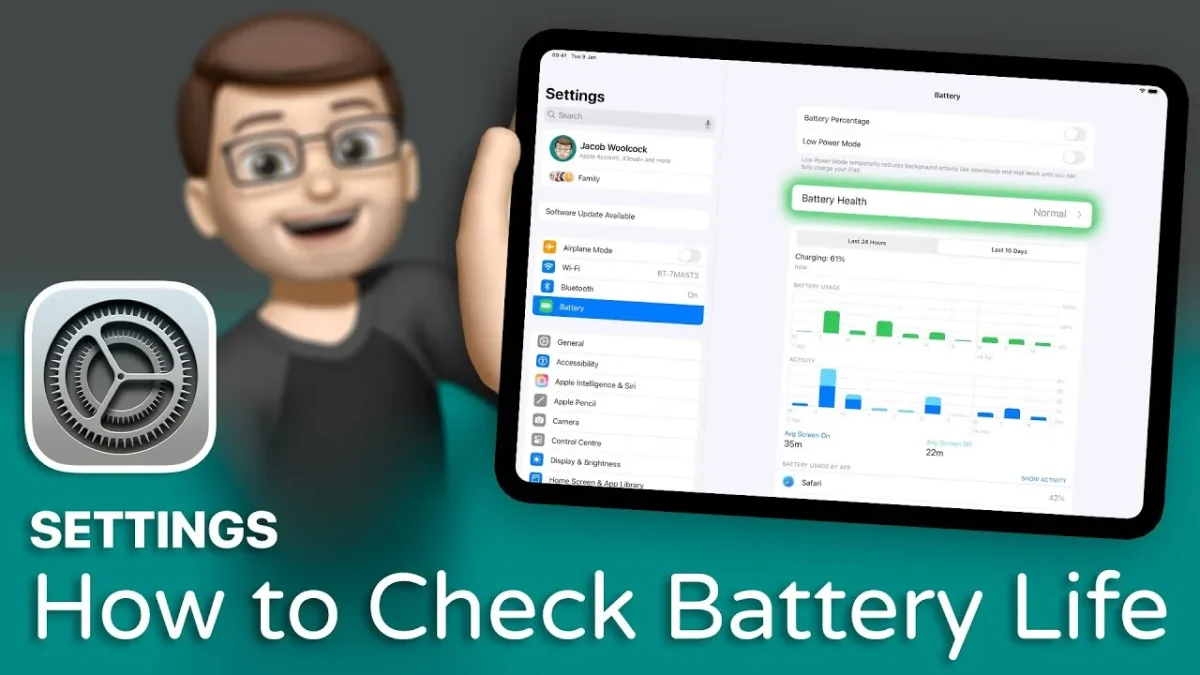
Check iPad Battery Life health is essential for ensuring consistent performance and extending its overall lifespan. By using built-in tools and adopting effective strategies, you can monitor battery metrics, understand usage patterns, and take proactive steps to preserve battery efficiency. The video below from Jacob’s QuickTips provides a comprehensive overview of how to access and interpret battery health information, as well as practical tips to optimize your iPad’s battery performance.
Accessing Check iPad Battery Life Health Information
To begin monitoring your iPad’s battery health, open the Settings app and navigate to the Battery section. This area provides a detailed breakdown of your device’s battery performance, divided into several key categories:
- Battery Usage Reports: Displays how power is consumed by apps and system processes.
- Health Status: Offers an overview of the battery’s condition and performance.
- Charging Options: Includes features like Optimized Charging to manage charging behavior.
Each of these sections provides valuable insights into your battery’s performance and usage patterns. Regularly reviewing this information allows you to identify potential issues and make adjustments to enhance battery efficiency.
Check iPad Battery Life Usage Overview
The Battery Usage report is a powerful tool for understanding how your iPad consumes power. It provides a detailed breakdown of app activity over the last 24 hours and the past 10 days, categorized into on-screen and background usage. This data helps you pinpoint which apps are consuming the most energy.
For instance, if a specific app shows high background activity, you can adjust its settings to reduce power consumption. Actions such as disabling Background App Refresh for energy-intensive apps can significantly improve battery life. Additionally, reviewing this report regularly helps you identify trends and make informed decisions about app usage.
Check iPad Battery Life Health Status
The Battery Health section offers a snapshot of your iPad’s overall battery condition. If the status reads Normal, your battery is functioning as expected. However, if it indicates reduced performance or recommends servicing, it may signal that the battery is experiencing wear and requires attention.
Staying informed about your battery’s health ensures that you can address potential issues early. For example, if your iPad suggests servicing, scheduling a battery replacement promptly can prevent further degradation and maintain optimal performance.
Maximum Capacity and Cycle Count
Two critical metrics within the Battery Health section are Maximum Capacity and Cycle Count, which provide deeper insights into your battery’s condition:
- Maximum Capacity: This percentage reflects the remaining capacity of your battery compared to when it was new. A healthy battery typically retains over 80% of its original capacity. If the percentage drops below this threshold, it may indicate significant wear, which can affect performance and runtime.
- Cycle Count: This tracks the number of complete charge cycles your battery has undergone. A charge cycle is defined as using 100% of the battery’s capacity, whether in one full charge or across multiple partial charges. Monitoring cycle count is particularly useful when evaluating second-hand devices, as a high cycle count suggests the battery may be nearing the end of its lifespan.
Understanding these metrics allows you to assess your battery’s health accurately and plan for potential replacements if necessary.
Optimized Charging Settings
Apple’s Optimized Battery Charging feature is designed to reduce battery aging and extend its lifespan. When enabled, this feature limits charging to 80% under certain conditions, such as when the device is charged overnight or remains plugged in for extended periods. By minimizing overcharging, this feature helps preserve long-term battery health.
To enable Optimized Charging, go to Settings > Battery > Battery Health & Charging and toggle on Optimized Battery Charging. This simple adjustment can make a significant difference in maintaining your iPad’s performance over time.
Check iPad Battery Life Extending
In addition to monitoring battery health, adopting best practices can further enhance your iPad’s battery longevity. Consider implementing the following tips:
- Avoid extreme temperatures: Exposure to excessive heat or cold can degrade battery performance and shorten its lifespan.
- Use certified chargers: Always use official or certified charging accessories to ensure safe and efficient charging.
- Keep software updated: Regularly update your iPad’s software, as updates often include battery optimization improvements.
- Adjust display settings: Lower screen brightness and enable Auto-Lock to reduce unnecessary power consumption.
By combining these habits with regular monitoring of battery health metrics, you can maximize your iPad’s battery lifespan and maintain its reliability for years to come.
Practical Steps for Long-Term Battery Care
Taking a proactive approach to battery care ensures that your iPad remains efficient and reliable. Regularly reviewing the Battery section in the Settings app allows you to track usage patterns, evaluate health status, and enable features like Optimized Charging. Key metrics such as Maximum Capacity and Cycle Count provide valuable insights into your battery’s condition, helping you make informed decisions about its care.
By integrating these tools and strategies into your routine, you can extend your iPad’s battery life, reduce the need for replacements, and enjoy consistent performance over time.
Official Link >>> https://geeky-gadgets.cc/